In 2022,
Strategy
About
Strategy (formerly MicroStrategy)
Strategy is an award-winning technology company that helps large organizations make sense of
their data. For over 30 years, they have specialized in turning complex numbers into clear,
visual stories that help businesses make smarter decisions.
What
they do
Think of Strategy as a bridge between a company's raw information and the people who need to
use it. They provide a secure, cloud-based platform where employees can view important
business trends from anywhere—whether they are at their desk or on their phone.
How
it works
The platform offers different tools tailored to how people work:
•
Library (web interface): for intuitive data exploration and effortless
dashboard creation.
•
Workstation (desktop tool): for advanced analysis and administrative
tasks.
•
Mobile apps: to access data and dashboards on the go.
Why
it matters
By using built-in Artificial Intelligence (AI), Strategy doesn't just show what happened; it
helps explain why it happened. It uses "intelligent bots" and automated forecasts to help
global brands—like Walmart, Pfizer, and Visa—spot opportunities and solve problems faster.
launched a major modernization initiative to replace legacy tools and eliminate external
dependencies, consolidating all capabilities within its modern desktop application, called
"Workstation". As part of this effort, a new Python Editor was introduced, replacing the outdated
Command Manager and paving the way for a fully integrated scripting experience.
As an Associate Designer, I was handed a critical mission: design a modern Python Script Scheduler that would complement the new Python Editor and eliminate reliance on external scheduling solutions.
The Problem: Fragmented Workflow & Operational Risk
Administrators were managing millions of data rows daily, executing essential maintenance scripts with precise timing—something no human operator could sustain manually—while also juggling other critical responsibilities.
To automate these tasks, they relied on external tools like Windows Task Scheduler, which introduced several pain points:
- Complex Setup: Significant effort was required to configure automation correctly.
- Limited Visibility: When failures occurred, troubleshooting consumed valuable time, delaying critical operations.
- Fragmentation: Using external schedulers created a disjointed workflow, increasing risk and reducing efficiency.
The Path to Understanding
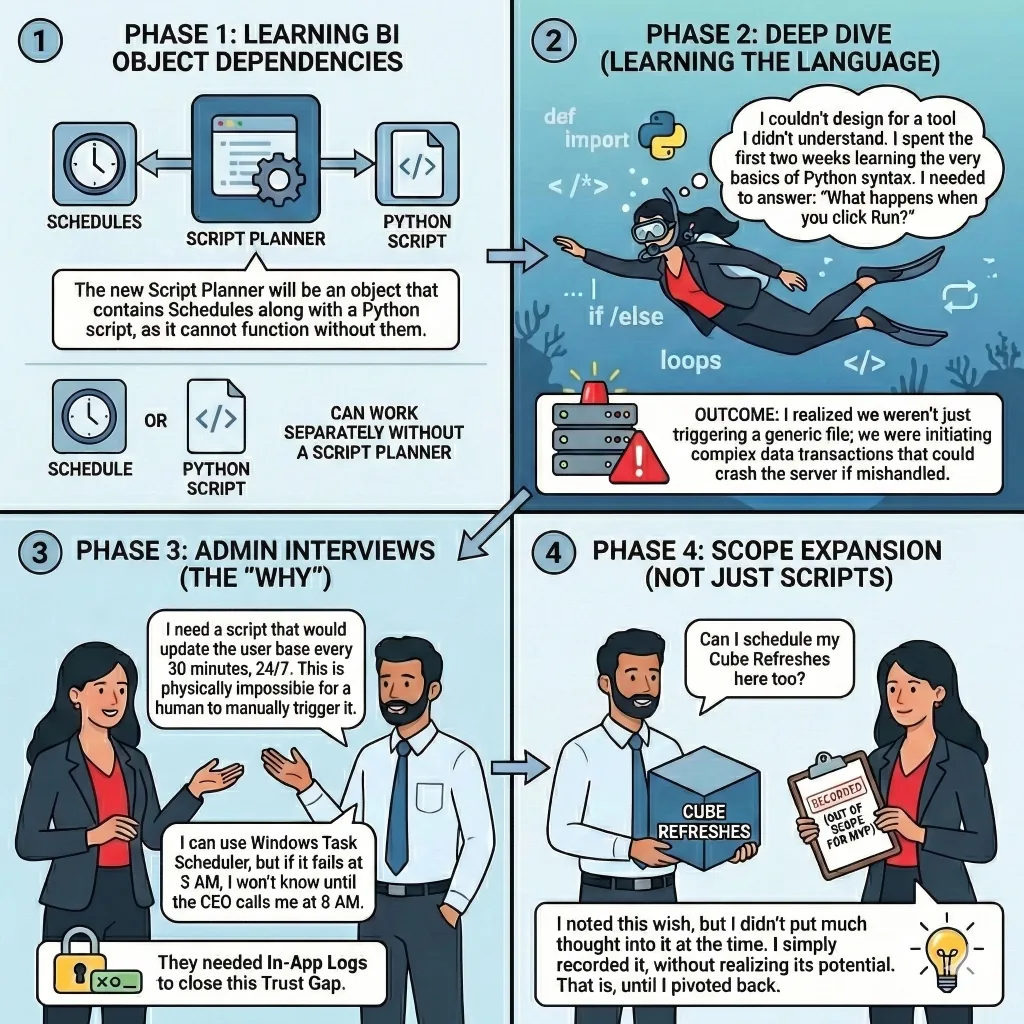
I started this project with a blank slate. As an Associate, I couldn't just 'design a scheduler' - I didn't even know what a Python script meant in this context. To move forward, I first needed to understand the dependencies and behavior of workstation objects, learn the basics of Python to grasp how scripts interact with schedules, and conduct interviews with system administrators to uncover their workflows, pain points, and specific needs. This foundational research was critical to designing a solution that was both technically sound and aligned with real-world usage.
The "Tabs" Trap & The Universal Hub
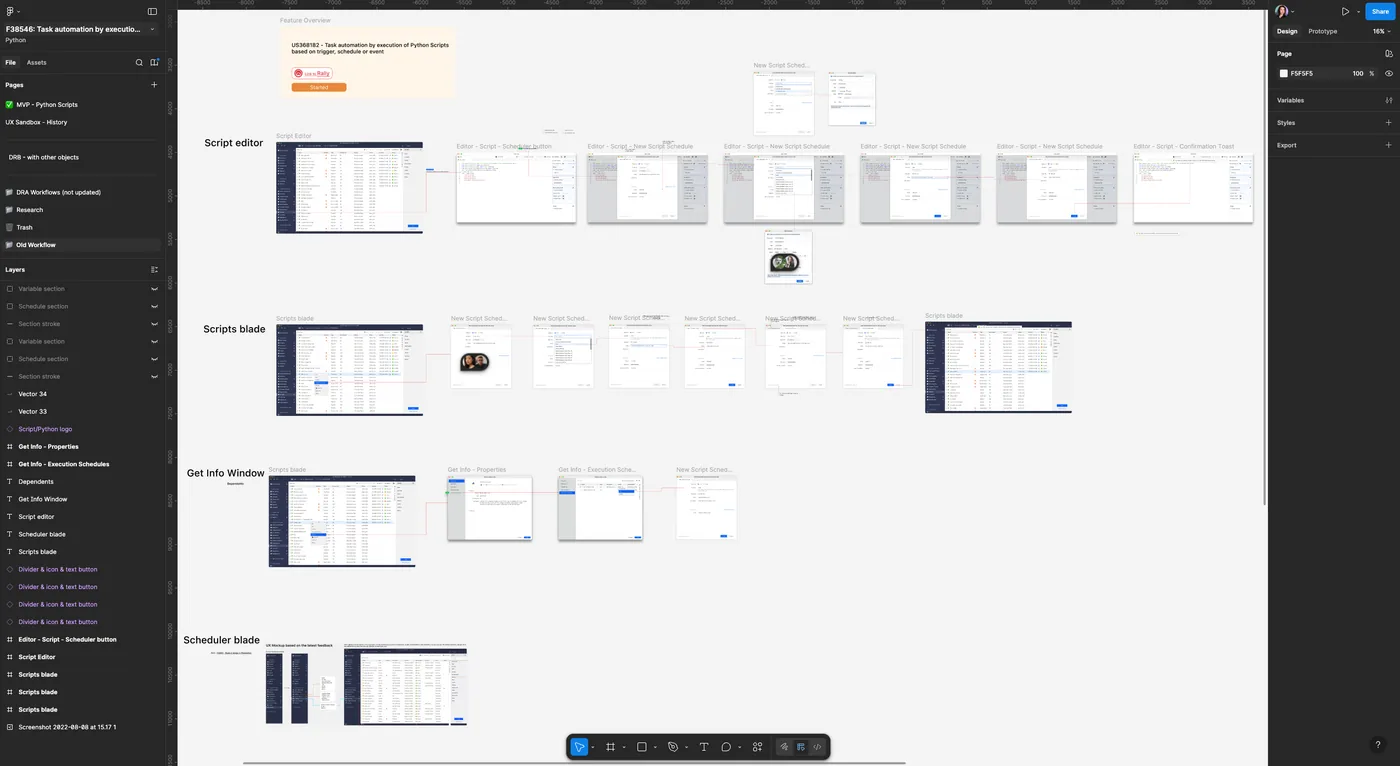
My initial concept focused on maintaining consistency with our existing Python Editor by implementing a tabbed interface within the new scheduler. To validate this approach, we conducted multiple stakeholder sessions, gathering feedback and ensuring alignment with user expectations. After receiving approval for the concept, I moved forward by mapping out high-level end-to-end workflows and defining detailed component behaviors to guide the design process.
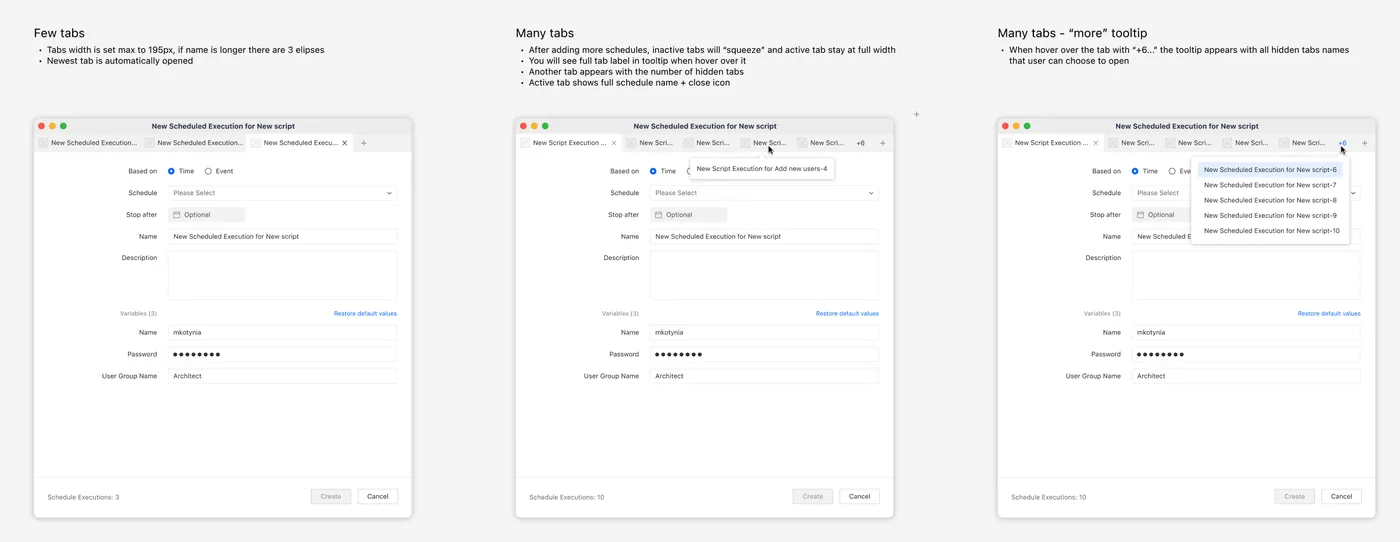
"A single script might have 50+ unique schedules. Tabs would collapse under that complexity."
The Pivot:
During design reviews, extensive discussions about tab behavior revealed a critical scalability
issue: with numerous schedules, navigation would become cumbersome, and truncation problems would
arise. I realized this approach would lead to a poor user experience.
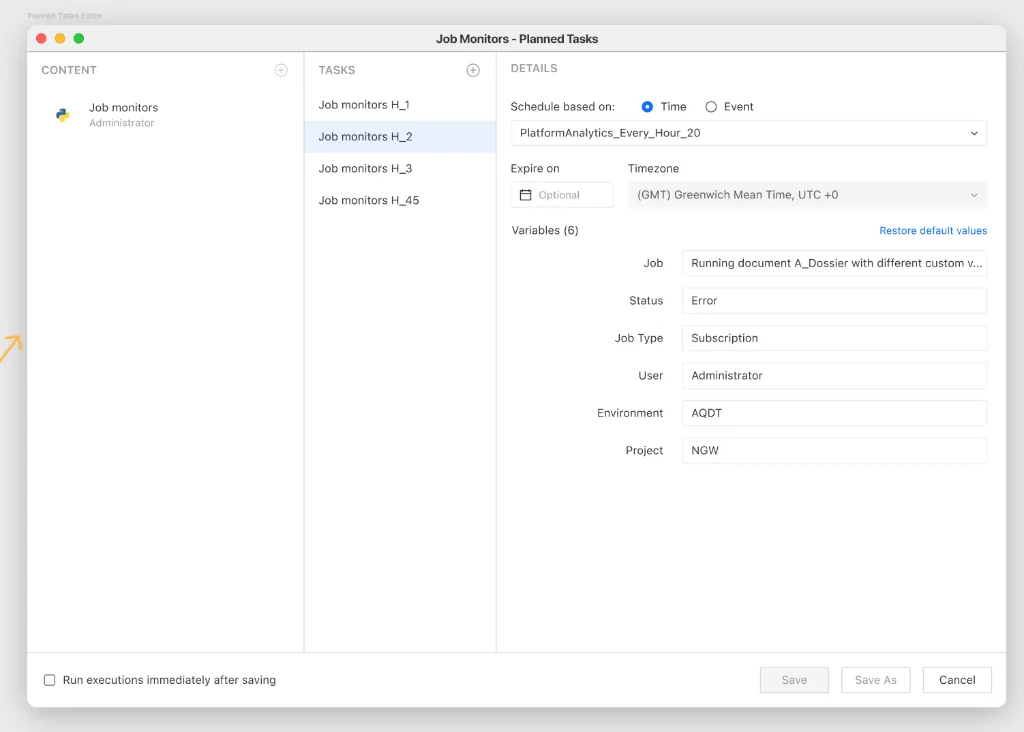
To solve this, I proposed a bold shift — abandoning the tabbed interface and introducing a standalone 3-Column Editor:
- Content: A dedicated space for objects the user wants to schedule.
- Tasks: A section displaying tasks related to the currently selected content.
- Details: A panel for schedules and settings, tailored to each specific object.
This strategic shift not only solved the navigation problem but also redefined the tool's purpose. What started as a Script Scheduler evolved into a Universal Scheduling Hub, significantly expanding its value and impact for users. Hence, the feature name was changed from Python Scheduler to Planned Task Editor, reflecting its broader capabilities and more suitable positioning.
Ambition vs. Reality
I presented the vision of a Universal Scheduling Hub to leadership, emphasizing its potential as a centralized automation center and a strong competitive advantage. The response was overwhelmingly positive, and I received approval to design detailed workflows for each object type. This allowed engineers to validate feasibility and estimate development effort. With this shift, the project scope expanded significantly - giving me the opportunity to design comprehensive workflows for multiple objects.
The Strategic Compromise (MVP):
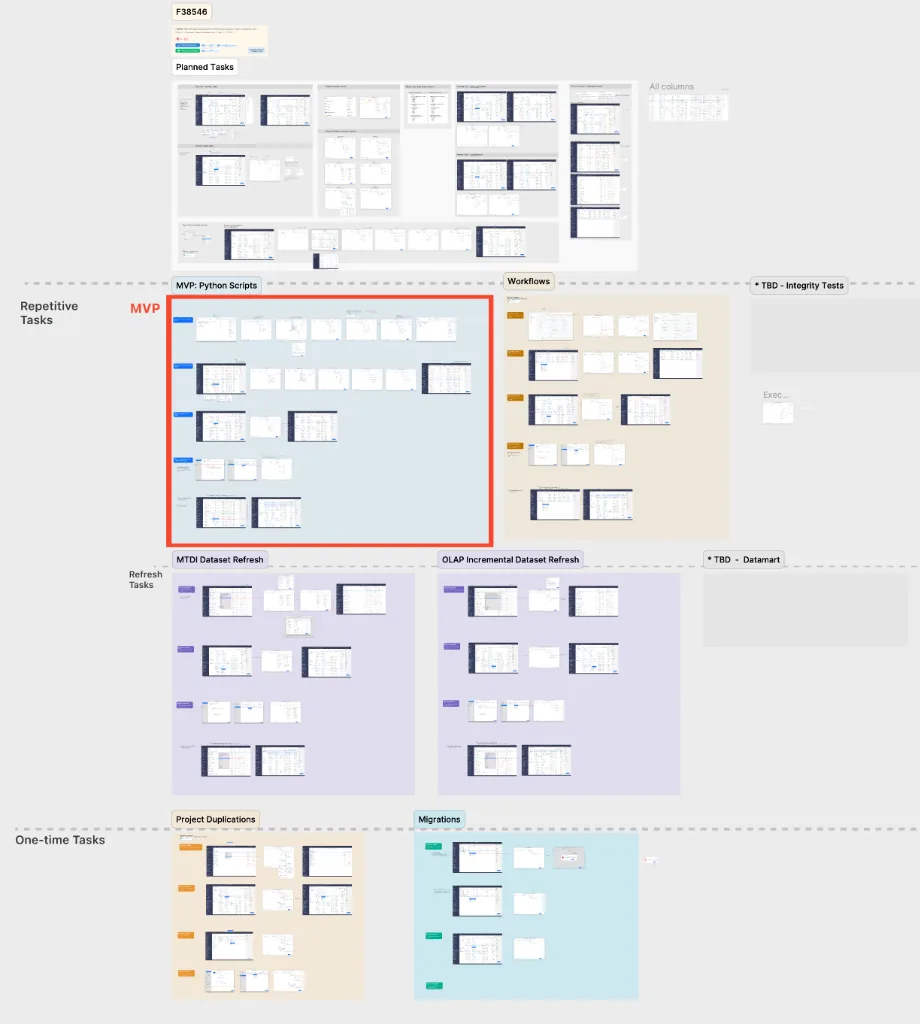
After engineering validation, it became clear that dedicating such extensive development time wasn't
feasible due to competing priorities. We agreed to take one step back and ship a Python Scripts–only
capability as the MVP. Crucially, we designed the 3-Column Architecture to be expansion-ready,
ensuring future scalability. We also avoided the "silver bullet" trap—adding features without clear
demand. Ultimately, we didn't build a dead-end solution; we laid the foundation for a scalable
ecosystem, starting with Python Scripts as the first step.
Building the Ecosystem
The Planned Task Grid (The Hub)
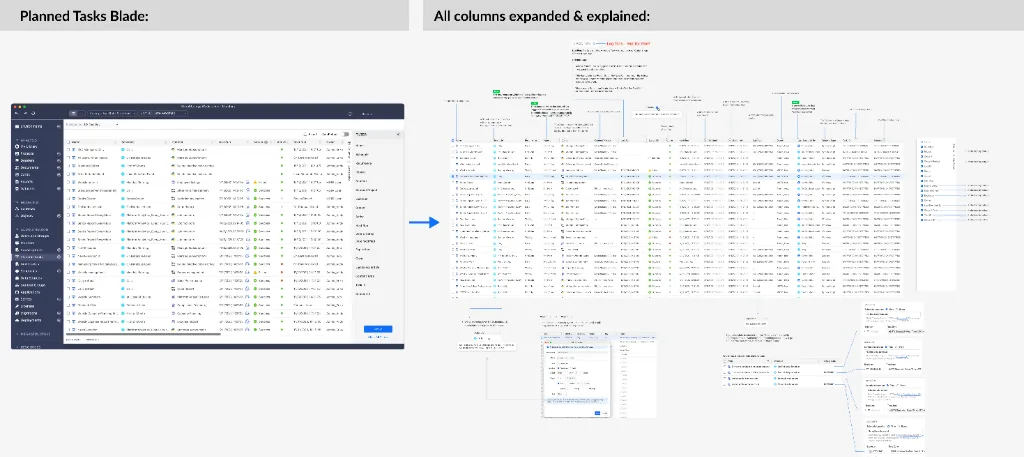
Designing a single Editor window wasn't enough—administrators needed a dedicated space to view and manage all planned tasks efficiently. To address this, I designed a new "Planned Tasks" section within the workstation. This section serves as a centralized hub where every task is visible, making administration and triage easier.
The solution had to be more than a simple list. It required a grid layout that displayed all critical details—not only from the task itself but also its associated schedule and script content. I created this grid, defined the necessary columns, and worked closely with administrators to validate which attributes were most important for their workflow. Together, we prioritized the columns and confirmed the optimal default order to support quick decision-making and task management.
Because this feature was complex and potentially confusing, I ran a dedicated session with developers to ensure they understood exactly what each column should represent. I documented every detail in Figma, providing precise descriptions and specifications for implementation.
Enhancing the Script Grid
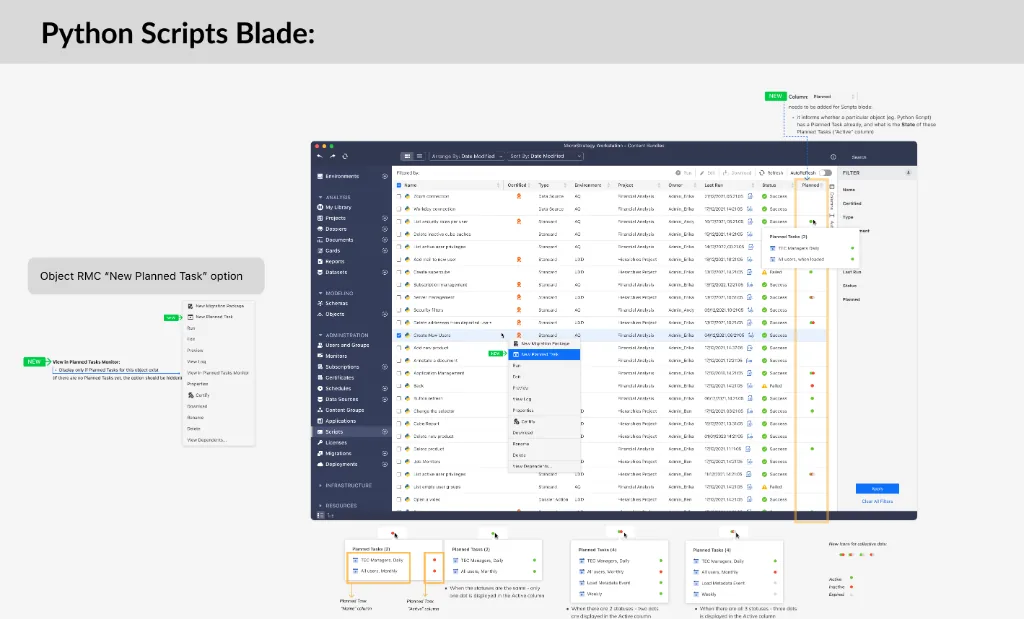
Since Planned Tasks are directly connected to Python scripts, the Scripts section in the workstation required significant updates. Administrators needed clear visibility into whether a script was scheduled for execution and which schedule was applied.
To achieve this without cluttering the main script list, I introduced a "Planned Task" column with a specific interaction pattern: On hover, a tooltip displays the full list of active tasks associated with that script.
This design prevents confusion between two distinct concepts:
- Python Script Last Execution Status (Success/Fail)
- Planned Task Status (Active/Inactive/Expired)
Additionally, I added the ability to schedule script execution directly from the grid via right-click (RMC), streamlining workflow and reducing navigation steps. To ensure seamless implementation, I documented all details in Figma, including column definitions, tooltip behavior, and interaction flows, so developers had a precise reference.
Handling Edge Cases, Errors, and Permissions
Delivering this feature end-to-end meant going beyond the main workflows. I had to account for a range of additional scenarios to ensure system stability and a seamless user experience. This included script certification logic (where certification means the script is approved and only admins can update it), error handling, edge cases, and dependency behaviors such as deletion rules.
Additionally, I defined necessary user privileges for critical actions and introduced various Right-Click Menu (RMC) options to streamline workflows. These enhancements ensured that administrators could act quickly while maintaining security and governance.
Certification Logic
Challenge: Only "Certified" scripts can be scheduled. What if a user edits a
certified script?
Solution: The system warns that editing will un-certify the script and
immediately pause all associated tasks to prevent errors.
Deletion Dependencies
Challenge: What happens to a Task if its parent Schedule Object is deleted?
Solution: I modeled dependency checks that block deletion if the object is in use,
preventing "orphan" tasks from running without rules.
Growth & Impact
This project was my "crucible." I evolved from an Associate asking, "What is Python?" to a Designer leading the logic for a complex BI system. What started as a simple item scheduler matured into a cohesive, end-to-end experience that administrators can trust and operate with confidence.
The result is a workstation experience where schedules, scripts, and governance work together seamlessly—minimizing ambiguity, preventing errors, and surfacing the right actions at the right time. I led the end-to-end definition across UX, interaction patterns, and implementation logic, documenting everything precisely in Figma so developers had unambiguous specifications to build against.